Exploring Proton: Steam’s Solution for Gaming on Linux
22 November 2025
If you’ve ever dipped your toes into the world of Linux gaming, you’ve likely heard the name “Proton” thrown around a lot. It’s been a game-changer (pun intended) for Linux enthusiasts who’ve long struggled with the age-old question: “Can I play my favorite games on Linux?” The short answer: yes, you can! And a big chunk of the credit goes to Steam’s Proton.
But what exactly is Proton? Why does it matter? And how has it managed to make gaming on Linux go from being a pipe dream to a true reality? Buckle up, because we’re about to dive deep into everything Proton and why it’s a big deal for gamers everywhere.
What Exactly Is Proton?
Alright, let’s start with the basics. Proton is a tool developed by Valve (the folks behind Steam) that allows Windows games to run on Linux operating systems. Think of it like a translator—Windows games speak one language, and Linux speaks another. Proton steps in to bridge the gap, making them understand each other.It’s built on Wine (a compatibility layer that's been around for ages) but with several enhancements and tweaks, specifically optimized for gaming. Valve essentially took Wine, turbocharged it with additional libraries like DXVK (DirectX to Vulkan translator), and sprinkled in their own magic dust. The result? A tool that makes running Windows-only games on Linux feel a lot less like hacking your way through a jungle with a machete.
Why Was Proton Even Necessary?
Let’s be real here—gaming on Linux has had a rocky history. For years, Linux users were stuck on the sidelines, wishing they could join the fun. Developers rarely released Linux-compatible versions of their games, leaving users with limited options. Sure, some brave souls relied on Wine to run Windows games, but it was often clunky, and the hit-or-miss results could be downright frustrating.Valve saw that pain point and decided to do something about it. Their vision was simple: if Steam could make Windows-only games seamlessly work on Linux, it would broaden the gaming horizons for millions of users. Proton wasn’t built just on a whim—it was a calculated move, tied to Valve’s larger investment in Linux gaming (hello, SteamOS and Steam Deck). 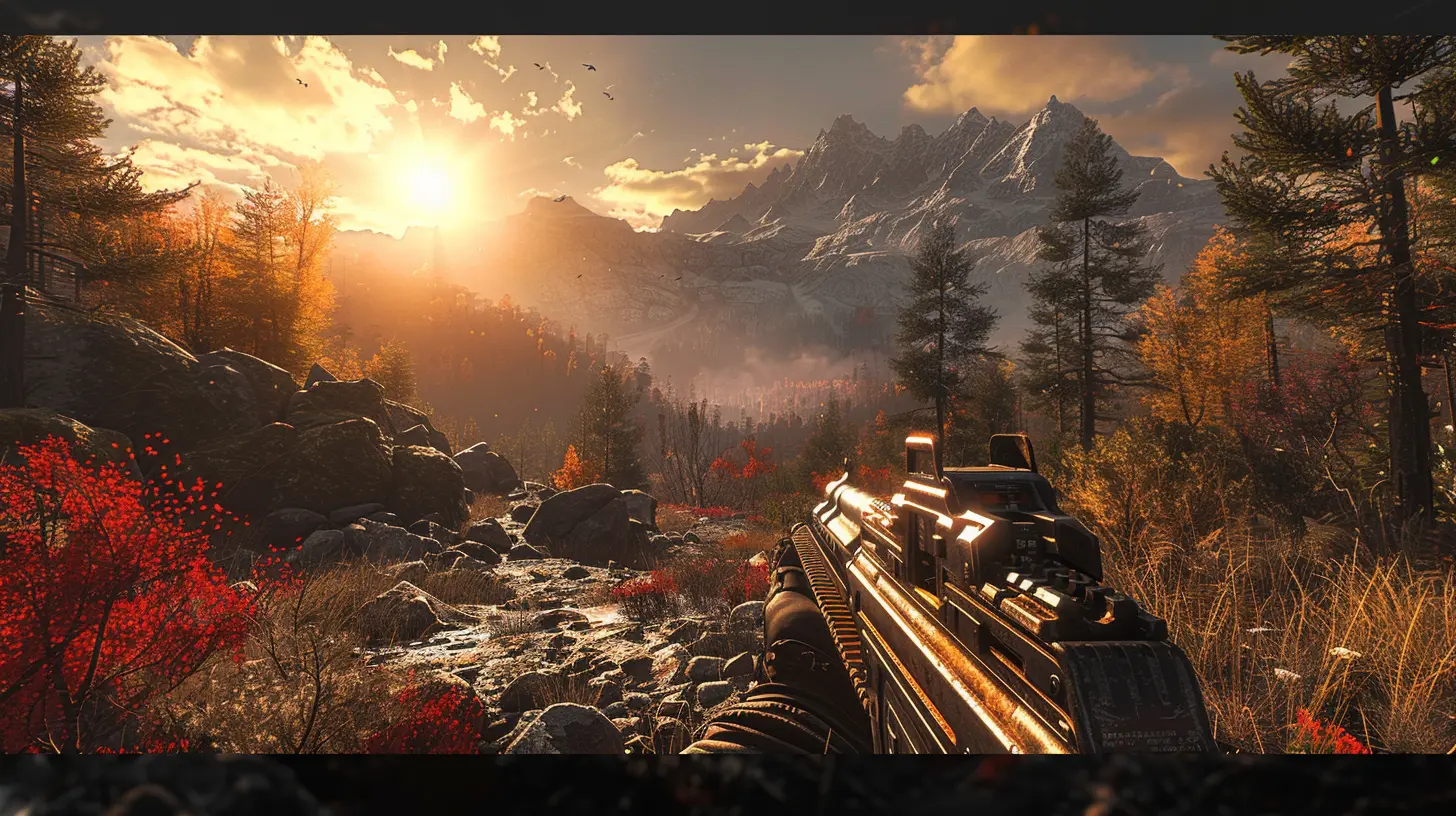
How Does Proton Work?
Okay, let’s nerd out for a second. Proton uses multiple open-source tools and libraries to get the job done:1. Wine: The foundation of Proton. It provides the basic Windows compatibility layer.
2. DXVK: This translates Microsoft’s Direct3D graphics calls into Vulkan, which Linux can understand. Think of DXVK as a master interpreter for visual languages.
3. FAudio: Handles audio, ensuring that your game’s sound effects don’t suffer.
4. VKD3D-Proton: Supports DirectX 12 games by converting them into Vulkan-compatible functions.
When you try to play a Windows game on Linux using Proton, these tools collectively come into action behind the scenes. It’s no small feat—imagine piecing together a 1,000-piece puzzle and making it look easy.
The Impact of Proton on Linux Gaming
Now that we know what Proton is and how it works, let’s talk about the real-world impact. How has Proton changed Linux gaming? Spoiler alert: it’s huge.1. Access to a Massive Library of Games
Before Proton, Linux users could only dream about playing blockbuster titles like The Witcher 3, Cyberpunk 2077, or Red Dead Redemption 2. Thanks to Proton, these games (and many others) are now within reach. Proton didn’t just open the gates—it kicked them down.2. Streamlined User Experience
One of the best things about Proton is how simple it is to use. You don’t need a Computer Science degree to make it work. Just log into Steam on Linux, enable Proton in your settings, and boom—you’re off to the races. No more endless tweaking, troubleshooting, or sacrificing a goat to the tech gods.3. Valve’s Commitment to Open Source
Proton wasn’t created in a vacuum. Valve collaborated with the open-source community to develop it, and the results have been phenomenal. The partnership has elevated the tools and libraries used in Proton, making them beneficial to Linux users beyond gaming.4. Linux’s Growing Popularity
Proton has undoubtedly contributed to a rise in Linux adoption among gamers. The more user-friendly gaming becomes on Linux, the more people are willing to give it a shot. It’s like flipping a switch and suddenly realizing the lights in your house work better than ever.Is Proton Perfect?
Of course not, and it’s important to acknowledge its limitations. Proton is fantastic, but it’s not magic.1. Not All Games Are Supported
While Proton works with a vast number of games, there are still some that stubbornly refuse to cooperate. Anti-cheat software in multiplayer games like Destiny 2 and Fortnite has historically been a major hurdle. The good news? Progress is being made, and more games are becoming compatible over time.2. Performance Can Vary
Let’s be honest—running Windows games on Linux will never be as efficient as playing native Linux games (when they exist). While Proton does a stellar job, there are times when performance might take a small hit. Is it a deal-breaker? For most users, not really.3. Troubleshooting Isn’t Entirely Gone
Although Proton has streamlined things significantly, there are still scenarios where a game might need a little extra TLC to run smoothly. You might find yourself digging into ProtonDB (a community-driven database with compatibility reports) to figure out which tweaks you need.Proton and Steam Deck: A Match Made in Gaming Heaven
We can’t talk about Proton without mentioning the Steam Deck. This handheld gaming device runs on Linux-based SteamOS, and Proton is a key part of its magic. The Deck can run thousands of games from the Steam library—many of which weren’t designed for Linux—thanks to Proton. It’s a testament to how far Linux gaming has come.The Steam Deck’s success has put Proton in the spotlight, and it’s not just Linux enthusiasts who are paying attention. Gamers all over the world are realizing that Linux gaming might finally be ready for prime time.
How to Get Started with Proton on Linux
Feeling inspired? Thinking about giving Proton a spin? Here’s a quick guide to get you started:1. Install Steam on Your Linux System: Head to Steam’s official website or your distro’s software store to install it.
2. Enable Proton in Steam:
- Open Steam.
- Go to `Settings > Steam Play`.
- Check the box for “Enable Steam Play for supported titles.”
- (Optional) Enable Steam Play for all other titles to try Proton with unsupported games.
3. Install a Game: Pick a game, hit install, and let Proton do its thing.
4. Consult ProtonDB: For games that don’t work perfectly out of the box, check ProtonDB for user-submitted fixes and tweaks.
And that’s pretty much it! You’ll be gaming on Linux in no time.
The Future of Proton and Linux Gaming
So, where does Proton go from here? The possibilities are endless. Valve’s continued support and the enthusiasm of the open-source community mean Proton is only going to get better. As more developers take Linux seriously and anti-cheat barriers are overcome, the dream of gaming on Linux without compromise is becoming more of a reality.If you’ve been hesitant to try Linux because of gaming concerns, now’s the time to reconsider. Proton is paving the way for a Linux gaming renaissance, and the future looks brighter than ever.
Final Thoughts
Gaming on Linux was once the equivalent of trying to navigate a corn maze blindfolded. You’d hit walls, get frustrated, and probably just give up. But thanks to Proton, it’s like someone handed you a map, a flashlight, and—you know—an actual exit.Valve’s initiative with Proton has not just made Linux gaming viable; it’s made it exciting. Whether you’re a die-hard penguin fan or just Linux-curious, Proton’s impact can’t be overstated. So, if you’re ready to game on a system that puts you in control and offers a unique experience, maybe it’s time to give Linux a shot. Who knows? You might never look back.
all images in this post were generated using AI tools
Category:
SteamAuthor:

Aurora Sharpe
Discussion
rate this article
2 comments
Elwynn Alexander
Proton offers an intriguing solution for Linux gamers, bridging the gap to access a wider library of games. While compatibility is improving, some titles still face issues. it's a promising step forward for the gaming community on Linux.
May 8, 2026 at 3:43 PM
Aurora Sharpe
Thanks for your insight! It's great to see Proton enhancing the gaming experience on Linux, even if some titles still have hurdles to overcome. Exciting times ahead for Linux gamers!
Cody Sanders
Proton bridges the gap for gamers on Linux, offering a robust compatibility layer that transforms the experience. Its continuous improvement reflects the growing commitment to diverse gaming ecosystems and community support.
November 22, 2025 at 4:16 AM
Aurora Sharpe
Thank you for your insightful comment! We're excited to see how Proton enhances the gaming experience on Linux and appreciate the community's support in driving its evolution.